Grab the bot first, then follow the steps in the sidebar. To list more bots here, add an item to the DOWNLOADS list in this page's script.
If you get stuck anywhere in this guide, our team can remotely access your PC (with your permission) via TeamViewer or AnyDesk and finish the entire setup for you in just a few minutes — completely free for customers.
Before you begin, make sure your PC meets these minimum requirements for smooth, stable botting.
Watch this comprehensive video tutorial for a complete walkthrough of the Farming Bot setup process.
Start by downloading the latest version of our Farming Bot software. This complete package includes all required files for installation.
Get the latest version of our powerful Farming Bot software
After downloading the Farming Bot, extract the files to a convenient location on your computer:
FarmingBot.exe, config folder, and other necessary files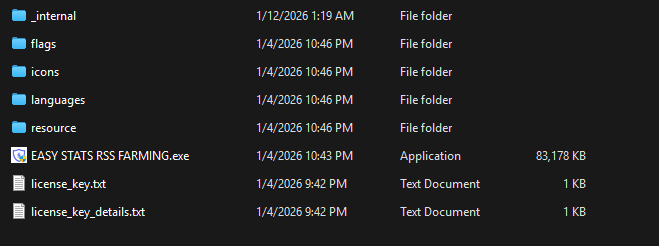
Our Farming Bot requires LD Player 9 emulator. Download and install it:
For optimal bot performance, configure these settings in LD Player:
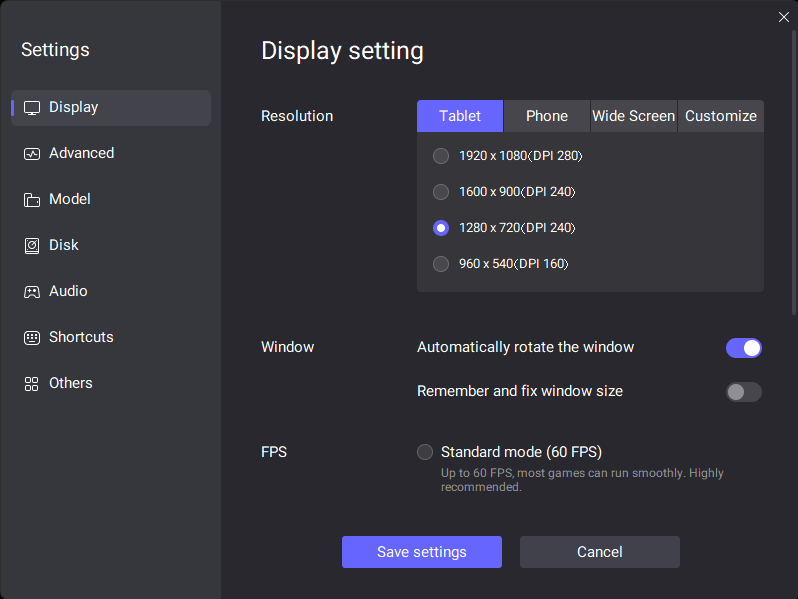
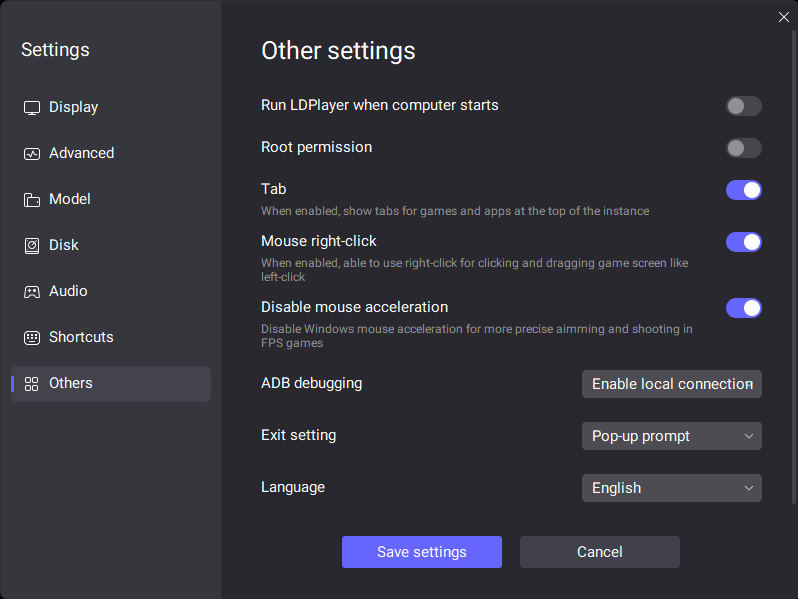
Now connect the Farming Bot to your LD Player instance:
FarmingBot.exe from extracted folder


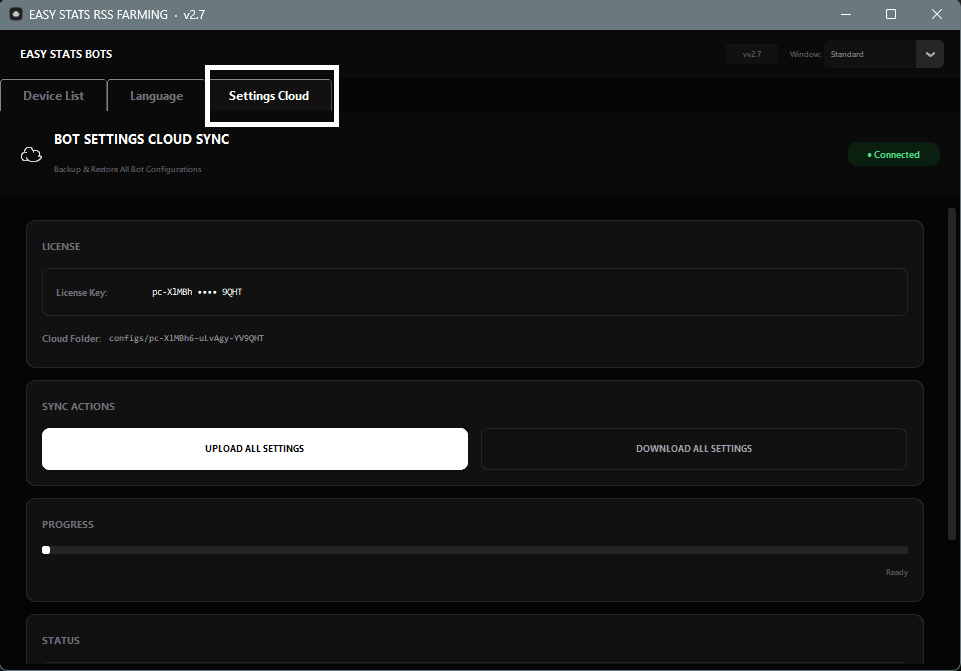
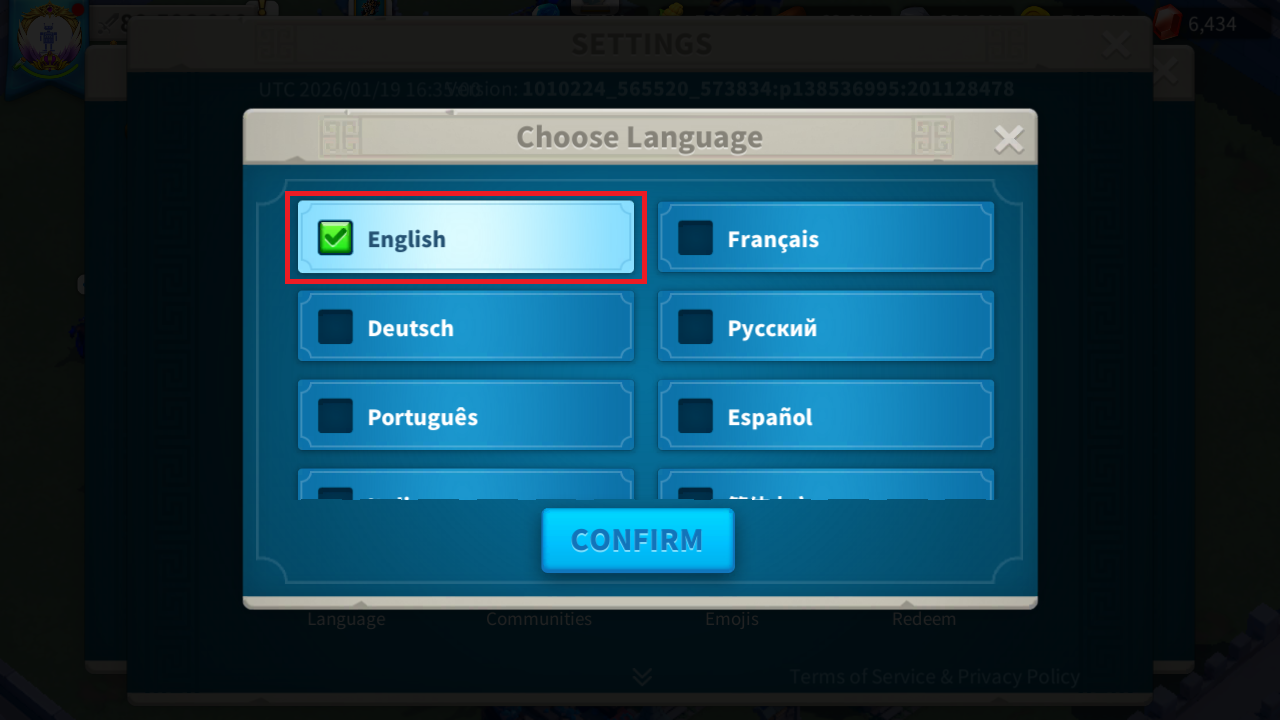
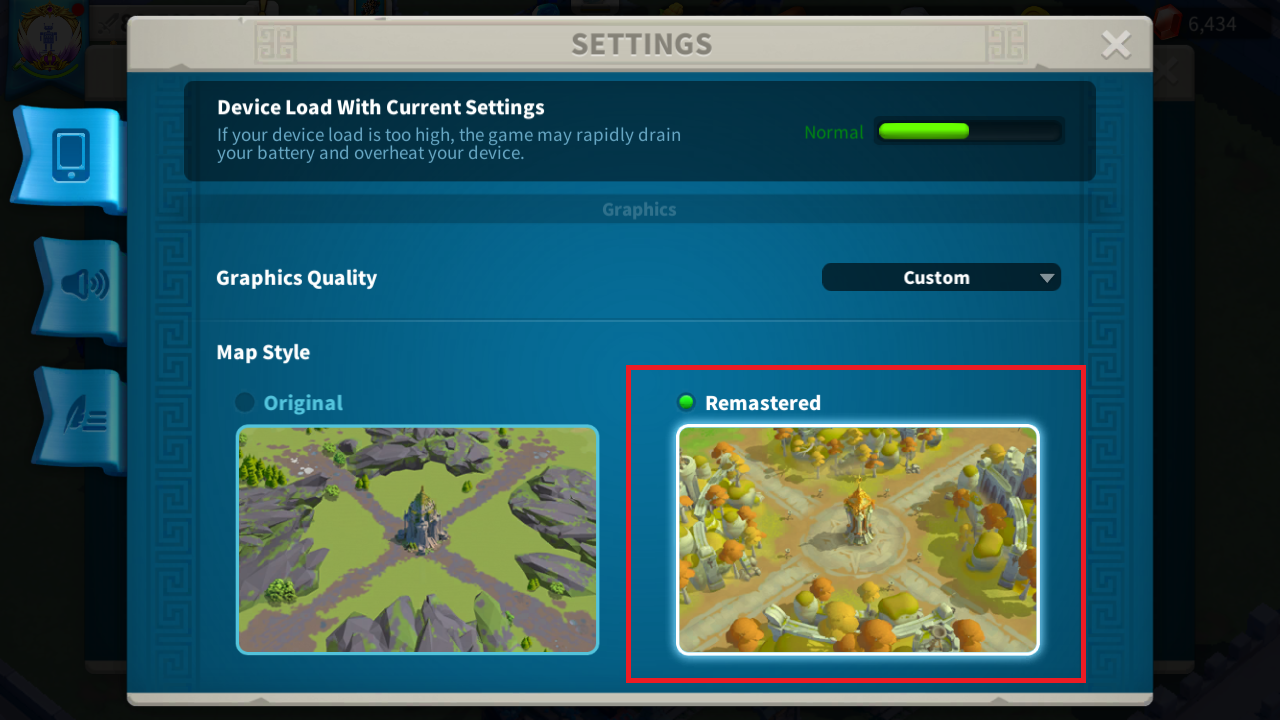
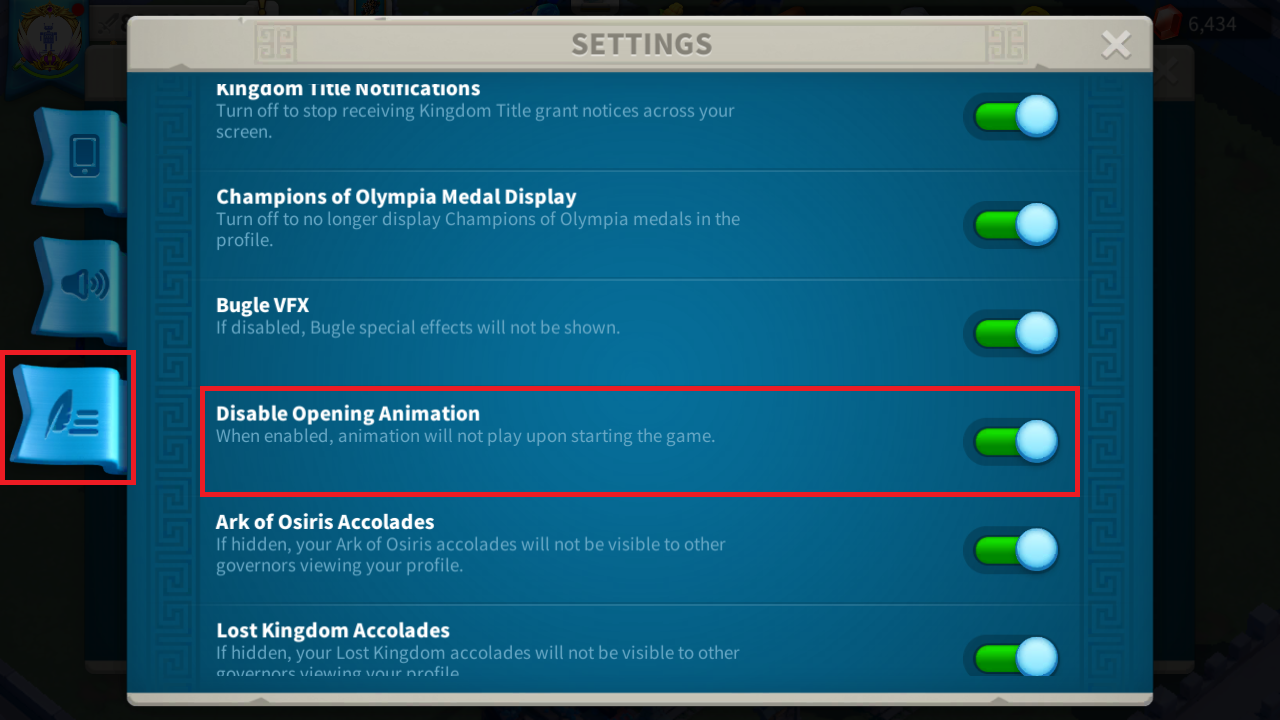
Configure Rise of Kingdoms game settings for best bot performance:


Configure which tasks you want the bot to perform:

Final steps to start and monitor your Farming Bot:

Run into a snag? Here are fixes for the most common setup problems.
FarmingBot.exe → Run as AdministratorIf something looks off, send us a screenshot and we'll sort it out with you.
Yes, our Farming Bot uses advanced anti-detection technology and follows game terms of service. We have thousands of active users with minimal risk when used properly. Always use recommended settings and avoid suspicious behavior.
Yes! The bot supports multi-instance operation. You can run multiple LD Player windows with different accounts. Each instance requires separate configuration and building position setup. Make sure your system has enough resources (RAM, CPU) for multiple instances.
Each emulator needs unique building positions. Use the building position setup tool in the bot interface. Click "Set Building Pos" and follow the on-screen instructions. Watch our setup video for detailed guidance. This is crucial for multi-emulator setups to avoid conflicts.
1. Ensure LD Player is running before starting the bot
2. Make sure ADB debugging is enabled in LD Player settings
3. Try restarting both LD Player and the bot
4. Check Windows Firewall isn't blocking the connection
5. Run both programs as Administrator
Currently, the bot only works on Windows operating systems. Mac/Linux users can use Windows virtualization software like Parallels, VMware, or BootCamp. Alternatively, you can use Windows Remote Desktop to access a Windows machine.
We recommend updating the bot whenever a new version is released. Updates often include bug fixes, new features, and compatibility improvements with game updates. Check our Discord server for update announcements and changelogs.